<?xml version="1.0" encoding="UTF-8" ?>
<feed xml:lang="ja" xmlns="http://www.w3.org/2005/Atom" xmlns:dc="http://purl.org/dc/elements/1.1/" xmlns:thr="http://purl.org/syndication/thread/1.0">
  <title type="text">Scorpionfish's Diary</title>
  <subtitle type="html">PCの設定の覚え書きを中心に。
旧共産圏のカメラ、アウトドアも少しずつ。</subtitle>
  <link rel="self" type="application/atom+xml" href="https://scorpionfish.blog.shinobi.jp/atom"/>
  <link rel="alternate" type="text/html" href="https://scorpionfish.blog.shinobi.jp/"/>
  <updated>2008-10-12T14:29:42+09:00</updated>
  <author><name>Scorpionfish</name></author>
  <generator uri="//www.ninja.co.jp/blog/" version="0.9">忍者ブログ</generator>
  <atom10:link xmlns:atom10="http://www.w3.org/2005/Atom" rel="hub" href="http://pubsubhubbub.appspot.com/" />
  <entry>
    <id>scorpionfish.blog.shinobi.jp://entry/109</id>
    <link rel="alternate" type="text/html" href="https://scorpionfish.blog.shinobi.jp/%E3%82%AA%E3%83%BC%E3%83%87%E3%82%A3%E3%82%AApc/raspberry%20pi3%E3%81%A8x400%E3%81%A7%E3%80%81%E3%82%AA%E3%83%BC%E3%83%87%E3%82%A3%E3%82%AAp" />
    <published>2017-02-09T22:18:48+09:00</published> 
    <updated>2017-02-09T22:18:48+09:00</updated> 
    <category term="オーディオPC" label="オーディオPC" />
    <title>Raspberry pi3とX400で、オーディオPCを作ってみた</title>
    <content mode="escaped" type="text/html" xml:lang="utf-8"> 
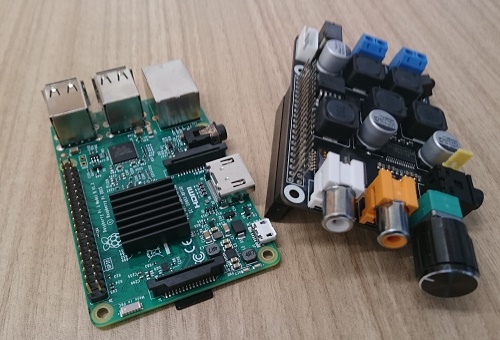
      <![CDATA[<a href="https://www.raspberrypi.org/products/raspberry-pi-3-model-b/" title="" target="_blank">Raspberry pi3</a>と<a href="http://www.suptronics.com/xseries/x400.html" title="" target="_blank">Suptronics X400</a>で、オーディオPCを作ってみた。<br />
OSはVolimio２を使用。<br />
<br />
<span style="color: #3366ff; font-size: large;">用意するもの</span><br />
<br />
Raspberry pi3<br />
<a href="http://www.suptronics.com/xseries/x400.html" title="" target="_blank">Suptronics　X400</a><br />
SDXCカード　(64GBを使用)<br />
&nbsp;&nbsp;&nbsp; 余り物を流用する場合には、フォーマットしておく。<br />
&nbsp;&nbsp;&nbsp; <a href="https://www.sdcard.org/jp/downloads/formatter_4/" title="" target="_blank">SDカードフォーマッター</a>が便利。<br />
ACアダプター（X400用）<br />
&nbsp;&nbsp;&nbsp; バッファローのルーター用のアダプタ（12V、2A）を流用した。<br />
<a target="_blank" href="//scorpionfish.blog.shinobi.jp/File/DS_0003.jpg" title=""><img src="//scorpionfish.blog.shinobi.jp/Img/1486646612/" alt="" height="173" width="256" /></a> <br />
<br />
<span style="font-size: large; color: #3366ff;">Volumioの書き込み、起動</span><br />
<br />
<a href="https://volumio.org/" title="" target="_blank">Volumio</a>をダウンロード、解凍する。<br />
<a href="https://ja.osdn.net/projects/sfnet_win32diskimager/" title="" target="_blank">Win32 Disk Imager</a>&nbsp;で、SDカードにイメージを書き込む。<br />
Raspberry piに差し込み、LANケーブルをつなぎ、電源を入れる。<br />
<br />
<span style="color: #3366ff; font-size: large;">接続</span><br />
<br />
<strong>有線接続</strong><br />
<br />
LANケーブルを接続、同じネット上にあるPCのブラウザから、<br />
<a href="http://volumio.local" title="" target="_blank">http://volumio.local</a><br />
&nbsp;に接続。<br />
あるいは、volumioのIPアドレスを入力し、接続する。<br />
<br />
Windowsのコマンドブロンプトよりpingを打ち、接続確認やipアドレスも確認することもできる。<br />
&gt;ping volumio<br />
<br />
<strong>無線LANしかない場合</strong><br />
<br />
接続したいけど、アクセスポイントの検索やパスワードの入力ができないし。(&acute;･&omega;･`)<br />
でも、大丈夫。(｀･&omega;･&acute;)<br />
<br />
Volumioは自動的にHotspotになる。<br />
スマホや無線LANのあるPCよりアクセスポイントを検索。<br />
<br />
<a href="https://volumio.github.io/docs/User_Manual/Quick_Start_Guide.html" title="" target="_blank">Volumio Documentation: Quick start guide</a><br />
<br />
Volumio Hotspot<br />
If your device has wireless capabilities (and a supported Wireless card) Volumio will create a Wireless Network called Volumio,<strong> the default password is volumio2</strong><br />
Once in Hotspot Mode, Volumio can be reached with IP 192.168.211.1 or via http://volumio.local as usual<br />
<br />
接続後に<br />
Show Settings 　　#右上の歯車（スマホだと右下）<br />
NETWORK&nbsp; <br />
Wireless Network<br />
アクセスポイントが表示される。<br />
自分のアクセスポイントを選択、パスワードを入力すると接続できる。<br />
任務を終了したHotspotは自動的に消滅する。<br />
<br />
<strong>ssh接続</strong><br />
<br />
login as: volumio<br />
password: volumio<br />
<br />
<br />
<span style="color: #3366ff; font-size: large;">IPアドレスの固定</span><br />
<br />
Show Settings <br />
NETWORK<br />
Wired Network<br />
&nbsp;&nbsp;&nbsp; Automatic IP:onからOFFにする。<br />
&nbsp;&nbsp;&nbsp; 固定したいアドレスを入力、saveする。<br />
<br />
<span style="color: #3366ff; font-size: large;">曲を入れる</span><br />
<br />
同じネットワーク上のPCのエクスプローラーより、下記入力。<br />
<br />
\\volumioのIPアドレス<br />
<br />
「Internal Storage 」に、曲をコピーする。<br />
曲は下記に収納される。<br />
<br />
/mnt/INTERNAL/<br />
<br />
Browse<br />
Music Library &nbsp; &nbsp;で見えるはず・・・。<br />
見えない。<br />
<br />
その時には、<br />
<br />
Show Settings&nbsp; 　 #右上の歯車<br />
MY MUSIC<br />
My Music<br />
Update<br />
<br />
これで、見えるようになる。<br />
<br />
<span style="color: #3366ff; font-size: large;">Suptronics X400の接続</span><br />
<br />
電源を切り、X400を接続。<br />
<br />
くれぐれも、microUSBに電力を接続しないように。<br />
<span style="color: #ff0000;">WARNING: DO NOT APPLY POWER TO YOUR RASPBERRY PI VIA THE PI&rsquo;s MICRO USB SOCKET.<br />
<br />
</span><span style="color: #333333; font-family: Calibri; font-size: 14.6667px;">Recommended Power Adapter : 110~240VAC input, 18 ~ 22VDC 4A output &nbsp;<br />
</span><a href="http://www.suptronics.com/images%202/DC%20plug.png" title="" target="_blank">電源端子のサイズ</a><br />
<br />
Show Settings <br />
Playback Options <br />
Audio Output<br />
&nbsp;&nbsp;&nbsp; Output Device: IQuadlO Pi+DigiAMP+<br />
&nbsp;&nbsp;&nbsp; 125DAC: On<br />
&nbsp;&nbsp;&nbsp; DCA Model:&nbsp; IQuadlO Pi+DigiAMP+<br />
<br />
Saveしてreboot <br />
<br />
<br />
<iframe width="320" height="240" style="width: 120px; height: 240px;" marginwidth="0" marginheight="0" scrolling="no" frameborder="0" src="//rcm-fe.amazon-adsystem.com/e/cm?lt1=_blank&amp;bc1=000000&amp;IS2=1&amp;bg1=FFFFFF&amp;fc1=000000&amp;lc1=0000FF&amp;t=pixy503-22&amp;o=9&amp;p=8&amp;l=as4&amp;m=amazon&amp;f=ifr&amp;ref=as_ss_li_til&amp;asins=B01LQ6VAMS&amp;linkId=545c762c804767d5826ebb3b0f9a89d2"></iframe>]]> 
    </content>
    <author>
            <name>Scorpionfish</name>
        </author>
  </entry>
  <entry>
    <id>scorpionfish.blog.shinobi.jp://entry/108</id>
    <link rel="alternate" type="text/html" href="https://scorpionfish.blog.shinobi.jp/pc/filemaker%20pro%2010%E3%81%AFwindows10" />
    <published>2016-06-06T19:55:34+09:00</published> 
    <updated>2016-06-06T19:55:34+09:00</updated> 
    <category term="PC" label="PC" />
    <title>FileMaker Pro 10はWindows10にインストールできるか？</title>
    <content mode="escaped" type="text/html" xml:lang="utf-8"> 
      <![CDATA[<div>ご愛用のデータベース、FileMaker。</div>
<div>Ver.2から使っているので、もう他には変われない。</div>
<div>Windowsを捨ててLinuxに移行できない最大の理由がFileMakerの存在です。</div>
<div>&nbsp;</div>
<div>FileMaker Pro10を使っていますが、OSをWindows10にクリーンインストールしたので、再インストールが必要となった。</div>
<div>一応、Windows10で使えるかどうか、チェックしてみた。</div>
<div>&nbsp;</div>
<div><a href="http://filemaker-jp.custhelp.com/app/answers/detail/a_id/15179/~/windows-10-%E3%81%A8%E3%80%81filemaker-13-%E4%BB%A5%E5%89%8D%E3%81%AE%E8%A3%BD%E5%93%81%E3%81%A8%E3%81%AE%E4%BA%92%E6%8F%9B%E6%80%A7" title="" target="_blank">公式ページ</a>によると、</div>
<div></div>
<div>FileMaker 13 およびそれ以前の製品は、Windows 10 上でのテストされておらず、Windows 10 上での動作をサポートしておりません。これらの製品は、Windows 10 が利用できるようになる前に開発、販売されたものです。</div>
<div>旧バージョンの製品を Windows 10 上にインストールし、実行することができたとしても、解決できない動作上の問題に遭遇する可能性があります。このため、最新の FileMaker ソフトウェアをご利用いただくことを強くお勧めします。</div>
<div>&nbsp;</div>
<div>FileMaker Pro10は保証外。　　　（&acute;・&omega;・｀）</div>
<div>でも、インストールしちゃう！　 &nbsp; &nbsp; &nbsp;　(｀・&omega;・&acute;)</div>
<div>&nbsp;</div>
<div>結論から言うと、何ら問題なく作動中。</div>
<div>今のところですが。</div>
<div>&nbsp;</div>
<div>当然、自己責任で。</div>]]> 
    </content>
    <author>
            <name>Scorpionfish</name>
        </author>
  </entry>
  <entry>
    <id>scorpionfish.blog.shinobi.jp://entry/107</id>
    <link rel="alternate" type="text/html" href="https://scorpionfish.blog.shinobi.jp/pc/windows8%E3%81%AE%E3%82%A4%E3%83%B3%E3%82%B9%E3%83%88%E3%83%BC%E3%83%AB%E6%99%82%E3%81%AB%E3%80%81ssd%E3%82%92%E8%AA%8D%E8%AD%98%E3%81%A7%E3%81%8D%E3%81%AA%E3%81%84" />
    <published>2016-05-31T00:23:55+09:00</published> 
    <updated>2016-05-31T00:23:55+09:00</updated> 
    <category term="PC" label="PC" />
    <title>Windows8のインストール時に、SSDを認識できない</title>
    <content mode="escaped" type="text/html" xml:lang="utf-8"> 
      <![CDATA[Windows8.1の調子が悪い。起動時にブルースクリーン、再起動で立ち上がる。<br />
<br />
ひらめいた！<br />
Windows10にすれば良くなるかも！<br />
<br />
しばらくは良かったが、そのうち完全に立ち上がらなくなった。<br />
<br />
Live CD（Linux Beanを使用）でデータを吸い出したところで、クリーンインストールした。<br />
システムは今まで使用していたインテルのSSD（335 Series 240GB MLC）をそのまま使った。<br />
<br />
Windows8のDVDを入れてインストール、プロダクトキーを入れてフォーマットのところまで行くが、肝心のドライブが見当たらない。(&acute;；&omega;；｀)ﾌﾞﾜｯ<br />
何度やっても先に進まない。<br />
BIOS設定を変えたり、SSDのファームウエアを新しくしたり・・・。<br />
<br />
いろいろな悩んだが、結論から言うと、データが残っているSSDにはWindows8はインストールできない。<br />
あらかじめフォーマットしておけばいいようだ。<br />
<br />
肝心のWindowsが使えないので、サブ機のLinux(Debian8.4)に繋げて、ディスクユーティリティーでバーティションをNTFSでフォーマットした。<br />
外してWindows機に接続。<br />
無事認識し、インストールできた。]]> 
    </content>
    <author>
            <name>Scorpionfish</name>
        </author>
  </entry>
  <entry>
    <id>scorpionfish.blog.shinobi.jp://entry/106</id>
    <link rel="alternate" type="text/html" href="https://scorpionfish.blog.shinobi.jp/linux/bunsenlabs%20linux%E3%81%AE%E3%83%A1%E3%83%8B%E3%83%A5%E3%83%BC%E3%81%AB%E3%82%BD%E3%83%AA%E3%83%86%E3%82%A3%E3%82%A2%E3%82%92%E5%85%A5%E3%82%8C%E3%82%8B" />
    <published>2016-05-19T17:31:47+09:00</published> 
    <updated>2016-05-19T17:31:47+09:00</updated> 
    <category term="Linux" label="Linux" />
    <title>BunsenLabs Linuxのメニューにソリティアを入れる</title>
    <content mode="escaped" type="text/html" xml:lang="utf-8"> 
      <![CDATA[BunsenLabsでも、ガードゲームがやりたい。ソリティアがやりたい。<br />
まず、インストールする。<br />
&nbsp;<br />
$ sudo apt-get install gnome-games<br />
&nbsp;<br />
これでインストールできた。<br />
ターミナルから以下を入力すると、ソリティアが立ち上がる。<br />
&nbsp;<br />
$ sol<br />
&nbsp;<br />
でもいちいちターミナルを立ち上げるのはめんどくさいし、やっぱりメニューに入れたい。<br />
しかしながら、<br />
The Openbox menu does not auto-update, it needs to be edited by the user.<br />
　<br />
自分で設定しましょう。<br />
　<br />
&nbsp;<br />
<br />
<strong>メニューの追加、編集</strong><br />
右クリック　「Preferences」 「Openbox」 「GUI Menu Editor」を選択し、Obmenuを立ち上げる。<br />
&nbsp;<br />
Openbox 3の左の▼をクリックし、メニューを表示する。<br />
&nbsp;<br />
Officeの下にGameのメニューを作り、そこにソリティアを入れることにした。<br />
&nbsp;<br />
Officeの下のseparatorを選択しておき、プルダウンメニューより、「Add」 「Menu」　を選択すると、「New Menu」ができる。<br />
下のLabelのところの「New Menu」をGameに変更する。<br />
上の「New Menu」の▼をクリックすると、サブメニューに「New Item」が現れる。<br />
これを選択し、下のところでLabelをNew ItemからSolitiaに変更する。<br />
ActionはExecuteを選択、その下のExecuteの項目をcommandからsolに変更する。<br />
Fileから保存を選び保存、終了する。<br />
&nbsp;<br />
これで新しいメニューができる・・・、はずであります。<br />
　<br />
<strong>メニューのフォント変更</strong><br />
右クリック　「Preferences」 「Openbox」 「GUI Config Tool」を選択し、Openbox設定マネージャを立ち上げます。<br />
「外観」項目のところでフォント変更ができます。]]> 
    </content>
    <author>
            <name>Scorpionfish</name>
        </author>
  </entry>
  <entry>
    <id>scorpionfish.blog.shinobi.jp://entry/105</id>
    <link rel="alternate" type="text/html" href="https://scorpionfish.blog.shinobi.jp/linux/conky%E3%81%A7rss%E3%81%8C%E8%A1%A8%E7%A4%BA%E3%81%A7%E3%81%8D%E3%81%AA%E3%81%84" />
    <published>2016-04-10T19:21:42+09:00</published> 
    <updated>2016-04-10T19:21:42+09:00</updated> 
    <category term="Linux" label="Linux" />
    <title>Conkyでrssが表示できない</title>
    <content mode="escaped" type="text/html" xml:lang="utf-8"> 
      <![CDATA[Conkyでrssが表示できない。<br />
&nbsp;<br />
${rss}&nbsp;&nbsp; の、表示だけ。<br />
&nbsp; <br />
数日悩んだが、結局はrssリーダーをインストールしていなかっただけだった。<br />
<br />
$sudo apt-get install conky<br />
　<br />
ではなく、<br />
&nbsp;<br />
<span style="color: #0000ff;">$sudo apt-get install conky-all</span><br />
&nbsp;<br />
これでインストールして再起動、無事に表示できた。]]> 
    </content>
    <author>
            <name>Scorpionfish</name>
        </author>
  </entry>
  <entry>
    <id>scorpionfish.blog.shinobi.jp://entry/104</id>
    <link rel="alternate" type="text/html" href="https://scorpionfish.blog.shinobi.jp/linux/raspberry%20pi%E3%81%A7%E3%80%81guake%E3%82%92%E8%87%AA%E5%8B%95%E8%B5%B7%E5%8B%95%E3%81%95%E3%81%9B%E3%82%8B" />
    <published>2016-04-09T07:25:45+09:00</published> 
    <updated>2016-04-09T07:25:45+09:00</updated> 
    <category term="Linux" label="Linux" />
    <title>Raspberry Piで、Guakeを自動起動させる</title>
    <content mode="escaped" type="text/html" xml:lang="utf-8"> 
      <![CDATA[Raspberry Piで、Guakeを自動起動させる。<br />
&nbsp;<br />
起動後、10秒でguakeが立ち上がるスクリプトを作る。<br />
&nbsp;<br />
$ vim .guake_s<br />
&nbsp;<br />
下記を記載し、 .guake_sとの名前でホームディレクトリーに保存する。<br />
&nbsp;<br />
<span style="color: #0000ff;">#! /bin/sh</span><br />
<span style="color: #0000ff;">sleep 10</span><br />
<span style="color: #0000ff;">/usr/bin/guake &amp;</span><br />
<br />
&nbsp;<br />
このスクリプトを、<br />
/home/pi/.config/lxsession/LXDE-pi/autostart<br />
に、@を付けて記載する。<br />
&nbsp;<br />
<br />
$ vim /home/pi/.config/lxsession/LXDE-pi/autostart<br />
　<br />
<span style="color: #0000ff;">@lxpanel --profile LXDE-pi</span><br />
<span style="color: #0000ff;">@pcmanfm --desktop --profile LXDE-pi</span><br />
<span style="color: #0000ff;">@xscreensaver -no-splash</span><br />
<span style="color: #0000ff;">@/home/pi/.guake_s<br />
&nbsp;<br />
<span style="color: #000000;">再起動する。</span></span>]]> 
    </content>
    <author>
            <name>Scorpionfish</name>
        </author>
  </entry>
  <entry>
    <id>scorpionfish.blog.shinobi.jp://entry/103</id>
    <link rel="alternate" type="text/html" href="https://scorpionfish.blog.shinobi.jp/%E3%82%A2%E3%82%A6%E3%83%88%E3%83%89%E3%82%A2%E3%83%BB%E3%82%B9%E3%83%9D%E3%83%BC%E3%83%84/%E4%B9%9D%E5%B3%B6%E5%A4%A7%E6%A9%8B%E9%96%8B%E9%80%9A" />
    <published>2016-04-02T23:29:21+09:00</published> 
    <updated>2016-04-02T23:29:21+09:00</updated> 
    <category term="アウトドア・スポーツ" label="アウトドア・スポーツ" />
    <title>九島大橋開通</title>
    <content mode="escaped" type="text/html" xml:lang="utf-8"> 
      <![CDATA[H28年4月3日に九島大橋が開通します。<br />
前日（4/2）のプレイベントに行ってきました。今日は歩行者と自転車だけが渡れます。<br />
イベント中は無料シャトルバスも運行しています。<br />
&nbsp; <br />
九島大橋<br />
<a target="_blank" href="//scorpionfish.blog.shinobi.jp/File/DSC_0004G.jpg" title=""><img src="//scorpionfish.blog.shinobi.jp/Img/1459636704/" alt="" /></a> <br />
&nbsp; <br />
フェリーも明日が最後です。<br />
<a target="_blank" href="//scorpionfish.blog.shinobi.jp/File/DSC_0007B.jpg" title=""><img src="//scorpionfish.blog.shinobi.jp/Img/1459636722/" alt="" /></a> <br />
&nbsp; <br />
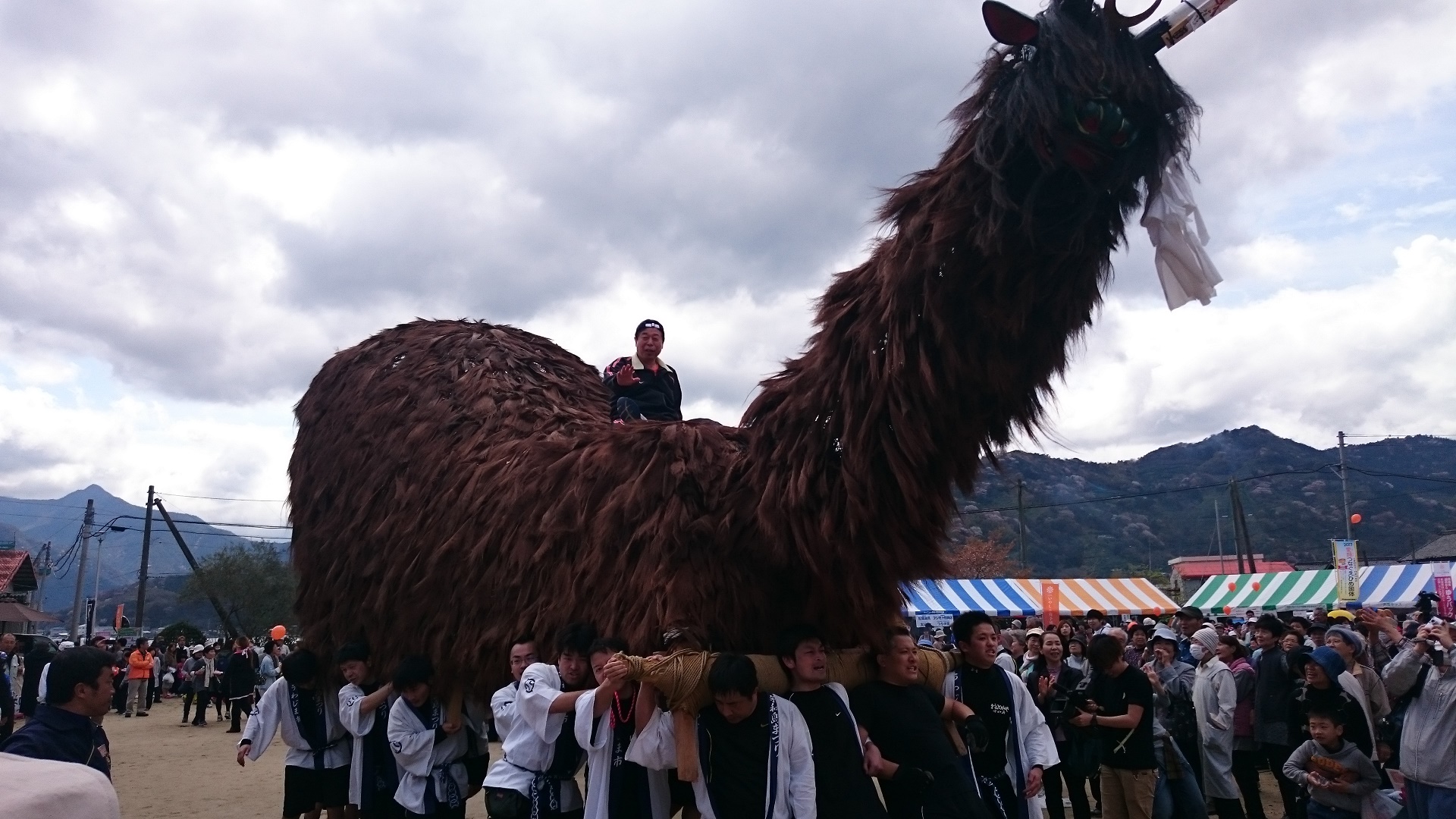
牛鬼<br />
<a target="_blank" href="//scorpionfish.blog.shinobi.jp/File/DSC_0009B.jpg" title=""><img src="//scorpionfish.blog.shinobi.jp/Img/1459636723/" alt="" /></a> <br />
&nbsp; <br />
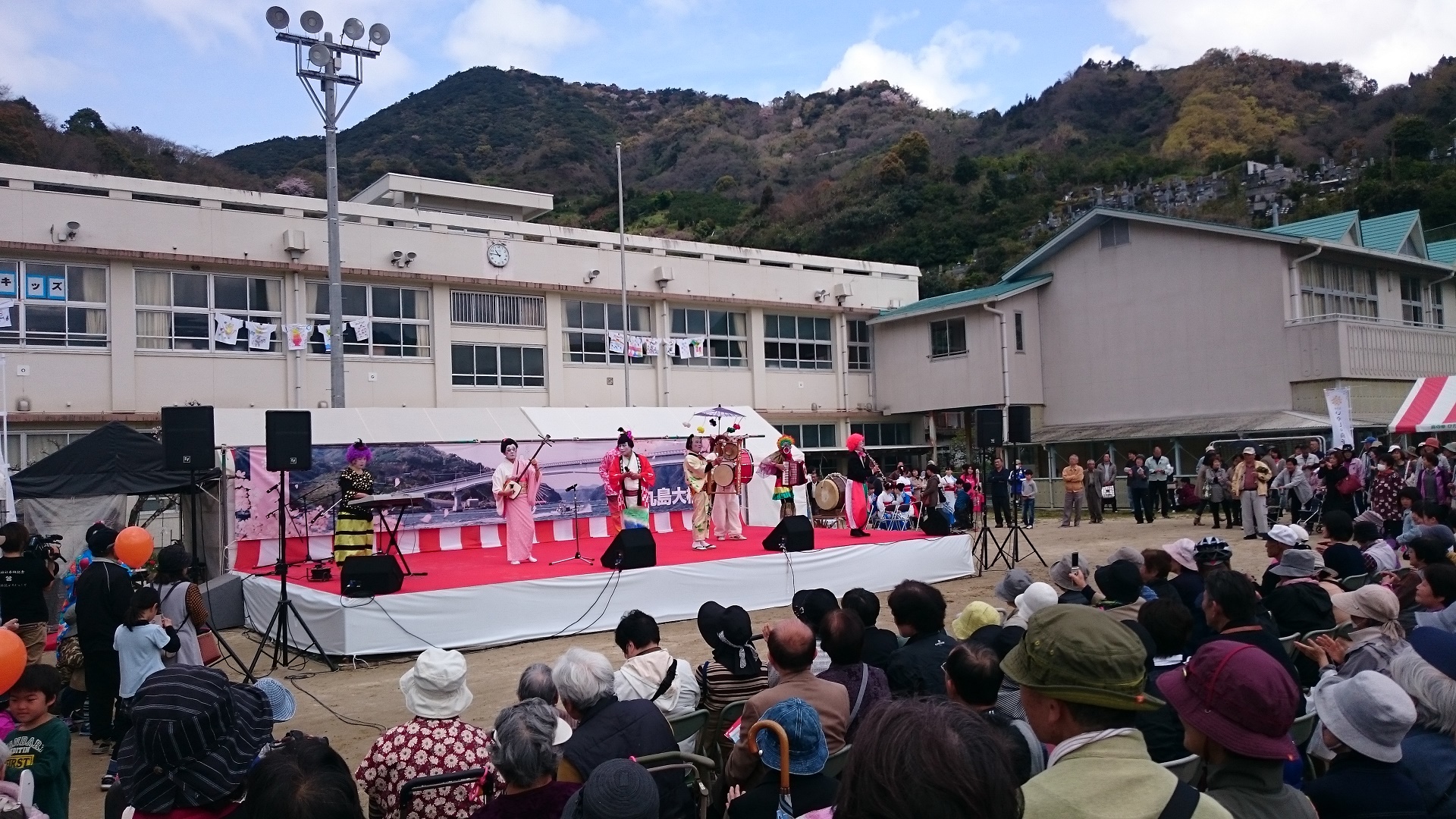
色々なイベントがやっていました。<br />
鬼北のチンドン屋さんです。<br />
<a target="_blank" href="//scorpionfish.blog.shinobi.jp/File/DSC_0012B.jpg" title=""><img src="//scorpionfish.blog.shinobi.jp/Img/1459636758/" alt="" /></a> <br />
&nbsp; <br />
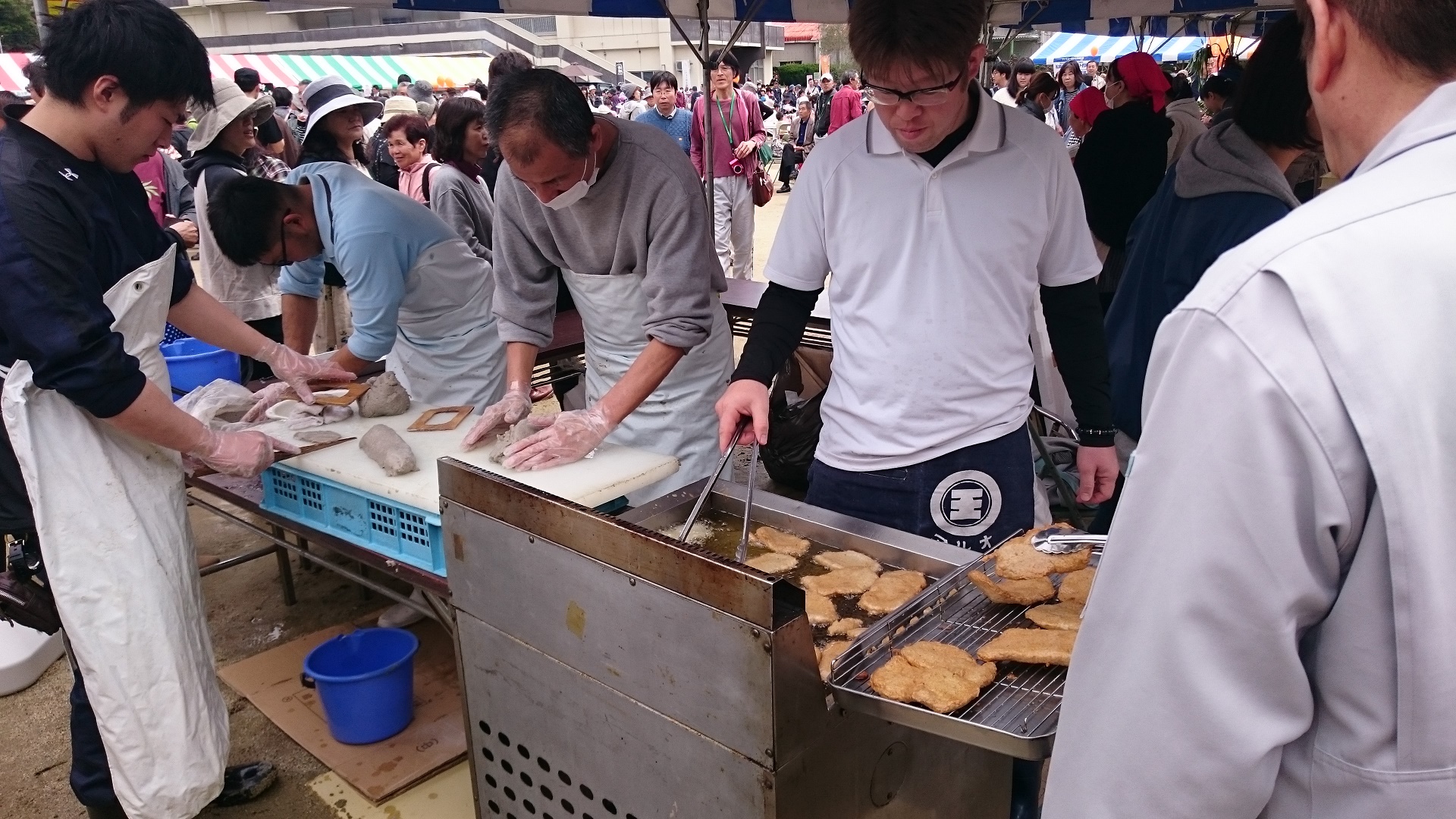
出店もたくさんありました。<br />
揚げたてのじゃこ天はうまい！<br />
<a target="_blank" href="//scorpionfish.blog.shinobi.jp/File/DSC_0018G.jpg" title=""><img src="//scorpionfish.blog.shinobi.jp/Img/1459636759/" alt="" /></a>]]> 
    </content>
    <author>
            <name>Scorpionfish</name>
        </author>
  </entry>
  <entry>
    <id>scorpionfish.blog.shinobi.jp://entry/102</id>
    <link rel="alternate" type="text/html" href="https://scorpionfish.blog.shinobi.jp/linux/reveal.js%E3%81%AE%E3%82%A4%E3%83%B3%E3%82%B9%E3%83%88%E3%83%BC%E3%83%AB-full%20setup-" />
    <published>2016-02-23T06:58:20+09:00</published> 
    <updated>2016-02-23T06:58:20+09:00</updated> 
    <category term="Linux" label="Linux" />
    <title>reveal.jsのインストール(Full Setup)</title>
    <content mode="escaped" type="text/html" xml:lang="utf-8"> 
      <![CDATA[<h3>reveal.jsのインストール(Full Setup)<br />
&nbsp;</h3>
<h4>1: Node.jsをインストールする。</h4>
&nbsp;<br />
$ sudo apt-get update<br />
$ sudo apt-get install nodejs<br />
$ sudo apt-get install npm<br />
$ sudo update-alternatives --install /usr/bin/node node /usr/bin/nodejs 10<br />
&nbsp;<br />
チェック<br />
$ node -v<br />
v0.10.29<br />
&nbsp;<br />

<h4>2: Gruntをインストールする。</h4>
&nbsp;<br />
$ sudo npm install -g grunt-cli<br />
/usr/local/bin/grunt -&gt; /usr/local/lib/node_modules/grunt-cli/bin/grunt<br />
grunt-cli@0.1.13 /usr/local/lib/node_modules/grunt-cli<br />
├── resolve@0.3.1<br />
├── nopt@1.0.10 (abbrev@1.0.7)<br />
└── findup-sync@0.1.3 (lodash@2.4.2, glob@3.2.11)<br />
<br />
&nbsp;<br />
$ grunt<br />
grunt-cli: The grunt command line interface. (v0.1.13)<br />
&nbsp;<br />
Fatal error: Unable to find local grunt.<br />
&nbsp;<br />
If you're seeing this message, either a Gruntfile wasn't found or grunt<br />
hasn't been installed locally to your project. For more information about<br />
installing and configuring grunt, please see the Getting Started guide:<br />
&nbsp;<br />
http://gruntjs.com/getting-started<br />
&nbsp;<br />

<h4>3: github から clone する。<br />
&nbsp;</h4>
<br />
$ sudo apt-get install git<br />
$ git clone https://github.com/hakimel/reveal.js.git<br />
Cloning into 'reveal.js'...ｃｄ<br />
remote: Counting objects: 8497, done.<br />
remote: Total 8497 (delta 0), reused 0 (delta 0), pack-reused 8497<br />
Receiving objects: 100% (8497/8497), 6.52 MiB | 217.00 KiB/s, done.<br />
Resolving deltas: 100% (4561/4561), done.<br />
Checking connectivity... done.<br />
&nbsp;<br />
$ cd reveal.js<br />
<br />
index.htmlを編集、スライドを作る。<br />
Markdownも使えるよ！]]> 
    </content>
    <author>
            <name>Scorpionfish</name>
        </author>
  </entry>
  <entry>
    <id>scorpionfish.blog.shinobi.jp://entry/101</id>
    <link rel="alternate" type="text/html" href="https://scorpionfish.blog.shinobi.jp/linux/beaglebone%20black-debian-%E3%81%A7%E3%81%AE" />
    <published>2016-02-14T13:54:52+09:00</published> 
    <updated>2016-02-14T13:54:52+09:00</updated> 
    <category term="Linux" label="Linux" />
    <title>Beaglebone Black(Debian)でのIPアドレスの固定</title>
    <content mode="escaped" type="text/html" xml:lang="utf-8"> 
      <![CDATA[<div><a target="_blank" href="//scorpionfish.blog.shinobi.jp/File/aa06de2c.png" title=""><img src="//scorpionfish.blog.shinobi.jp/Img/1455425607/" alt="" style="display: block; margin-left: auto; margin-right: auto;" height="85" width="68" /></a><a href="http://beagleboard.org/BLACK" title="" target="_blank"> <br />
Beaglebone Black</a>にDebianをインストールした。</div>
<div>サーバーに使うので、DHCPによる動的IPアドレスを固定アドレスに変更してみた。</div>
<div>思ったより苦労したのでメモ書き。</div>
<div>&nbsp;</div>
<div><strong>IPアドレスの固定</strong></div>
<div>&nbsp;</div>
<div>現在のIPアドレスはDHCPによる自動設定で、</div>
<div>192.168.10.3</div>
<div>になっている。</div>
<div>&nbsp;</div>
<div>これを固定の</div>
<div>192.168.10.22</div>
<div>にする。</div>
<div>&nbsp;</div>
<div>/etc/network/interfacesを編集する。</div>
<div>&nbsp;</div>
<div># vim /etc/network/interfaces</div>
<div>&nbsp;</div>
<div># The loopback network interface</div>
<div>auto lo</div>
<div>iface lo inet loopback</div>
<div>&nbsp;</div>
<div># The primary network interface</div>
<div>&nbsp;auto eth0</div>
<div>#iface eth0 inet dhcp</div>
<div># Example to keep MAC address between reboots</div>
<div>#hwaddress ether AB:CD:EF:GH:IJ:KL</div>
<div>iface eth0 inet static</div>
<div>address &nbsp; &nbsp; &nbsp; &nbsp; 192.168.10.22</div>
<div>network &nbsp; &nbsp; &nbsp; &nbsp; 192.168.10.0</div>
<div>netmask &nbsp; &nbsp; &nbsp; &nbsp; 255.255.255.0</div>
<div>broadcast &nbsp; &nbsp; &nbsp; 192.168.10.255</div>
<div>gateway &nbsp; &nbsp; &nbsp; &nbsp; 192.168.10.1</div>
<div>dns-nameservers 192.168.10.1</div>
<div>&nbsp;</div>
<div>保存</div>
<div>&nbsp;</div>
<div># cat /etc/resolv.conf</div>
<div>&nbsp;</div>
<div>これも以下に書き換える。</div>
<div>&nbsp;</div>
<div># Generated by Connection Manager</div>
<div>nameserver 192.168.10.1</div>
<div>&nbsp;</div>
<div>保存後、再起動する。</div>
<div>&nbsp;</div>
<div># /etc/init.d/networking restart</div>
<div>&nbsp;</div>
<div>確認</div>
<div>&nbsp;</div>
<div># ifconfig</div>
<div>&nbsp;</div>
<div>普通はこれでできるはず。</div>
<div>&nbsp;</div>
<div>アドレスは変更されたが、なぜか以前の192.168.10.3は生きている。</div>
<div>しかも、再起動後に元のアドレスに戻ってしまう。</div>
<div>&nbsp;</div>
<div>困った。</div>
<div>&nbsp;</div>
<div><strong>Connmanによる設定</strong></div>
<div>どうやらbeagleboneでは、ネットワーク管理を<a href="https://wiki.archlinuxjp.org/index.php/Connman" title="" target="_blank">Connman</a>で行っているためのようである。<br />
　<br />
<em>「ConnMan は解決時間が高速な組み込みデバイスで使うために作られたコマンドラインネットワークマネージャです。プラグインアーキテクチャ によるモジュール式になっていますが、ネイティブで dhcp と ntp をサポートもしています。」</em></div>
<div><em>　</em></div>
<div>&nbsp;</div>
<div>ネットワークプロファイルの確認</div>
<div>&nbsp;</div>
<div># cat /var/lib/connman/*/settings</div>
<div>[ethernet_544a16f2c490_cable]</div>
<div>Name=Wired</div>
<div>AutoConnect=true</div>
<div>Modified=2016-02-14T01:29:07.106323Z</div>
<div>IPv4.method=dhcp</div>
<div>IPv4.DHCP.LastAddress=192.168.10.3</div>
<div>IPv6.method=auto</div>
<div>IPv6.privacy=disabled</div>
<div>[ethernet_544a16f2c492_cable]</div>
<div>Name=Wired</div>
<div>AutoConnect=true</div>
<div>Modified=2016-02-14T01:26:40.337088Z</div>
<div>IPv4.method=dhcp</div>
<div>IPv6.method=auto</div>
<div>IPv6.privacy=disabled</div>
<div>IPv4.DHCP.LastAddress=192.168.7.1</div>
<div>&nbsp;</div>
<div>Ethernetを動かしている、ethernet_544a16f2c490_cableのセッティングを変更する。</div>
<div>&nbsp;</div>
<div>サービスの確認</div>
<div>&nbsp;</div>
<div># connmanctl services</div>
<div>*AO Wired &nbsp; &nbsp; &nbsp; &nbsp; &nbsp; &nbsp; &nbsp; &nbsp;ethernet_544a16f2c490_cable</div>
<div>*AR Wired &nbsp; &nbsp; &nbsp; &nbsp; &nbsp; &nbsp; &nbsp; &nbsp;ethernet_544a16f2c492_cable</div>
<div>&nbsp; &nbsp; Wired &nbsp; &nbsp; &nbsp; &nbsp; &nbsp; &nbsp; &nbsp; &nbsp;gadget_544a16f2c491_usb</div>
<div>&nbsp;</div>
<div>以下の形式で変更する。</div>
<div>&nbsp;</div>
<div># connmanctl config &lt;service&gt; --ipv4 manual &lt;ip_addr&gt; &lt;netmask&gt; &lt;gateway&gt; --nameservers &lt;dns_server&gt;</div>
<div>&nbsp;</div>
<div>今回の例</div>
<div>&nbsp;</div>
<div>$ sudo connmanctl config ethernet_544a16f2c490_cable --ipv4 manual 192.168.10.22 255.255.255.0 192.168.10.1&nbsp; --nameservers 192.168.10.1</div>
<div>&nbsp;</div>
<div>これで、reboot後もIPアドレスは固定のままになった。</div>
<div>&nbsp;</div>
<div>【参考】</div>
<div>&nbsp;</div>
<div><a href="https://groups.google.com/forum/#!topic/beagleboard/yfNwIk_dWlg" title="" target="_blank">https://groups.google.com/forum/#!topic/beagleboard/yfNwIk_dWlg</a>&nbsp; (Brian Anderson氏の投稿)</div>
<div><a href="http://derekmolloy.ie/set-ip-address-to-be-static-on-the-beaglebone-black/" title="" target="_blank">Set Static IP Address on the Beaglebone Black</a></div>]]> 
    </content>
    <author>
            <name>Scorpionfish</name>
        </author>
  </entry>
  <entry>
    <id>scorpionfish.blog.shinobi.jp://entry/100</id>
    <link rel="alternate" type="text/html" href="https://scorpionfish.blog.shinobi.jp/%E3%82%A2%E3%82%A6%E3%83%88%E3%83%89%E3%82%A2%E3%83%BB%E3%82%B9%E3%83%9D%E3%83%BC%E3%83%84/%E7%AC%AC54%E5%9B%9E%E6%84%9B%E5%AA%9B%E5%AA%9B%E3%83%9E%E3%83%A9%E3%82%BD%E3%83%B3" />
    <published>2016-02-08T23:20:28+09:00</published> 
    <updated>2016-02-08T23:20:28+09:00</updated> 
    <category term="アウトドア・スポーツ" label="アウトドア・スポーツ" />
    <title>第54回愛媛媛マラソン</title>
    <content mode="escaped" type="text/html" xml:lang="utf-8"> 
      <![CDATA[2/7に第54回愛媛媛マラソン、走ってきました。
<div>&nbsp;</div>
<div>以前より運営やエイドに定評のある大会ですが、今年はさらに進化！</div>
<div>タルトに坊ちゃん団子にバナナに飴に、etc.</div>
<div>スタッフの皆さん、お疲れ様、ありがとうございました。</div>
<div>&nbsp;</div>
<div>そして現場で働くポランティアの学生さんには感謝しかありません。</div>
<div>皆、笑顔で大声の応援。</div>
<div>元気を一杯もらいました。</div>
<div>寒い中、ありがとうございました！</div>
<div>&nbsp;</div>
<div>応援の方々にも、力をいただきました。</div>
<div>ありがとうございました！</div>
<div>&nbsp;</div>
<div>肝心のタイムは、30kmまではこれはいけるかな？</div>
<div>なんて思っていましたが、40km辺りで足が攣ってしまし、あとはボロボロ。</div>
<div>ああ、練習不足は嘘つかない・・・。</div>
<div>&nbsp;</div>
<div>走りながら気が付いたのは、いつも運営に参加してもらっている自衛隊の皆さんの姿を見かけなかったこと。</div>
<div>その時は深く考えていなかったのですが、翌日のニュースを見たら北朝鮮のミサイル騒動。<br />
今思うと、本業の方の警戒でそれどころじゃなかったのかな。</div>
<div>お疲れ様です。</div>
<div>&nbsp;&nbsp;</div>
<div>写真は会場の横の愛媛県美術館前でウロウロしていた、アノマロカリスどーもくんです。<br />
<a target="_blank" href="//scorpionfish.blog.shinobi.jp/File/cb071416.jpeg" title=""><img src="//scorpionfish.blog.shinobi.jp/Img/1454939895/" alt="" height="240" width="135" /></a></div>]]> 
    </content>
    <author>
            <name>Scorpionfish</name>
        </author>
  </entry>
</feed>